This post would show how I build go-ethereum on my Win10 computer, and if you are interested in build, develop, debug, submit a bug report or pull request or contribute code to go-ethereum, you can do this as well.
What you need
Go Environment
Make sure you have go v1.8 installed, and the GOPATH is set.
If you don’t, just download and run the installer found at http://golang.org/doc/install ( In this post, I assume you are using Windows system as me. )
Then you need to set GOPATH and PATH, search “Environment Variables“ in the start menu, add ” PATH_TO_YOUR_GO_DIRECTORY/bin” to PATH variable.
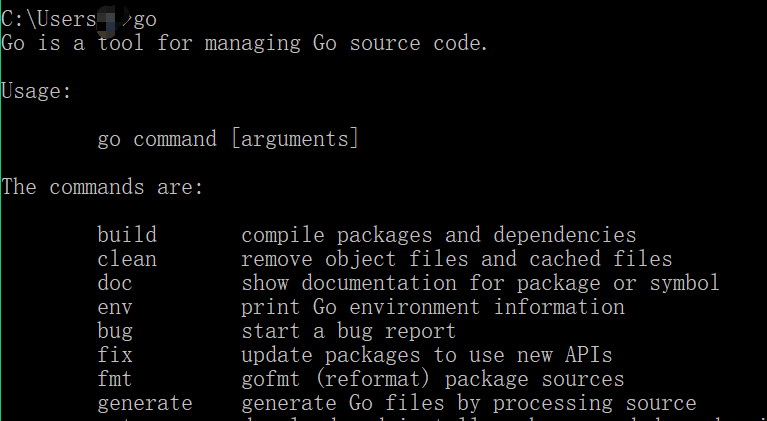
Now check if your Go is working right by:

go-ethereum source code
Get the source code code into the right place:
git clone https://github.com/ethereum/go-ethereum.git $GOPATH/src/github.com/ethereum/go-ethereumNote:You must have your working copy under $GOPATH/src/github.com/ethereum/go-ethereum. For example I am using “C:\Users\K\go\src\github.com\ethereum\go-ethereum”
Since go does not use relative path for import, working in any other directory will have no effect, since the import paths will be appended to $GOPATH/src, and if the lib does not exist, the version at master HEAD will be downloaded.
What you need to do
Managing Dependencies
govendor is used to manage all other dependencies.
run govendor fetch <import-path> to add a new dependency, then commit the result.
run govendor fetch +v to update all dependencies to their latest upstream version
Building Executables
Go to the go-ethereum repository root directory. Build all code using the go tool, placing the resulting binary in $GOPATH/bin:
go install -v ./...go-ethereum exectuables can be built individually. To build just geth, use:
go install -v ./cmd/gethGetting Stack Traces
the --pprof option would make a debugging HTTP server available on port 6060
Then you can bring up http://localhost:6060/debug/pprof to see the heap, running routines etc.
To generate stacktraces for many geth instances:
geth -port=30300 -verbosity 5 --pprof --pprofport 6060 2>> 00.glog
geth -port=30301 -verbosity 5 --pprof --pprofport 6061 2>> 01.glog
geth -port=30302 -verbosity 5 --pprof --pprofport 6062 2>> 02.glog
In the above commands, -verbosity means Logging verbosity: 0=silent, 1=error, 2=warn, 3=info, 4=debug, 5=detail (default: 3)
Instead of connecting to tha main network, you may perfer connect to your own private network for testing, in this case just add some other options:
geth --datadir="/path_to_your_data_directory/YOUR_FOLDER" init "path_to_folder/CustomGenesis.json"  console 2>> logs\01.glog

geth -port=30300 --ipcdisable --pprof --pprofport 6060 --datadir="/path_to_your_data_directory/YOUR_FOLDER"   --networkid id  console 2>> logs\00.glog

geth -port=30301--ipcdisable --pprof --pprofport 6061 --datadir="/path_to_your_data_directory/YOUR_FOLDER" --networkid id  console 2>> logs\01.glog

geth -port=30302--ipcdisable --pprof --pprofport 6062 --
datadir="/path_to_your_data_directory/YOUR_FOLDER" --networkid id  console 2>> logs\02.glog